Docs
Install on one machine
One command. The sensor finds every AI tool on the machine and starts reporting within a minute. Mac, Linux and Windows.
Get the command
- Sign in to the console.
- Open Settings, then Deployment.
- Pick your platform. The command shown already has your workspace's token in it. The token looks like
zybet.followed by letters and numbers. Keep it private: anyone with it can add a machine to your workspace.
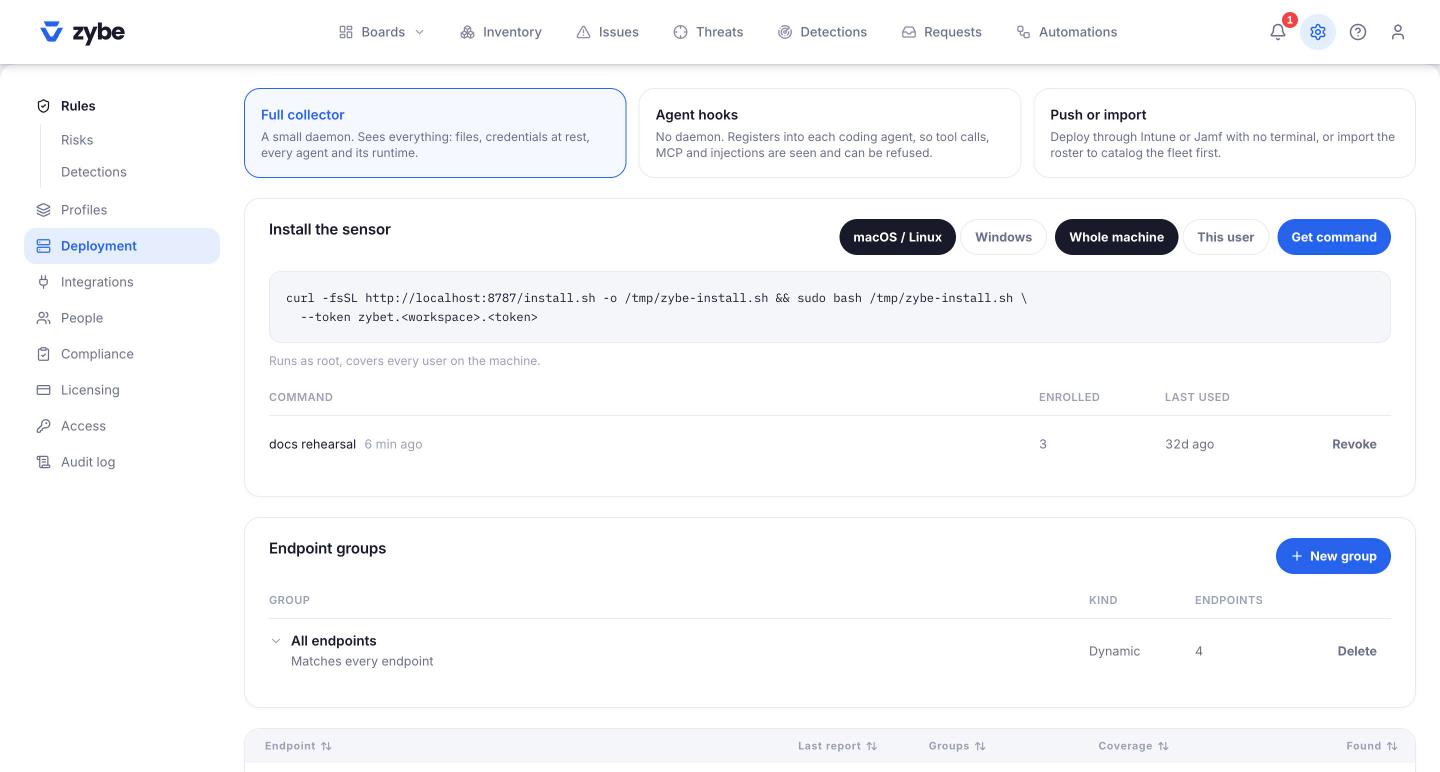
Whole machine or just me?
On Mac and Linux you choose.
| Whole machine | Just this user | |
|---|---|---|
| Needs admin password | Yes | No |
| Covers | Every user account on the machine | The account you install from |
| Can the developer remove ZYBE's settings from their AI tools? | No. ZYBE writes them where the tools treat them as company policy. | Yes |
| Use it for | Company laptops | Trying ZYBE, or a machine you don't administer |
For a company, choose whole machine.
Mac
Open Terminal and paste the command from the Deployment page. It looks like this:
curl -fsSL https://api.zybe.ai/install.sh -o /tmp/zybe-install.sh \
  && sudo bash /tmp/zybe-install.sh --token zybet.<your token>
It asks for your Mac password. It downloads the sensor, checks the download is genuine, installs it, and does the first scan.
If it warns about Full Disk Access: some AI tools keep their files in places macOS protects. Open System Settings, Privacy & Security, Full Disk Access, and switch on Terminal. Then run the command again. Without it ZYBE still works, but the console will show what it couldn't read as a blind spot.
For a just-me install, drop sudo and add --user at the end.
Linux
Same command as Mac. It works on any distribution with systemd.
For a just-me install, drop sudo and add --user at the end.
Windows
Windows installs are for the signed-in user. You need Git for Windows installed first, because the sensor runs on the bash it provides.
Open PowerShell and paste:
irm https://api.zybe.ai/install.ps1 -OutFile zybe-install.ps1
.\zybe-install.ps1 -Token zybet.<your token>
Hooks only, no service
The Deployment page has a second card, Agent hooks. It installs ZYBE for the signed-in user with no background service and reads nothing at rest. ZYBE connects to the AI tools' own check points, and the hook itself syncs with the console in the background while an AI tool is in use. Nothing runs when it isn't.
npx zybe@latest hooks --token zybet.<your token>
What it sees: every tool call, MCP call and injected instruction, and it refuses what your rules say to refuse. What it doesn't see: keys and files on disk that no AI tool has touched, and AI tools with no check point. For a company laptop, the full install above is the one to use; this one is for a developer's own machine, or a build box where a service isn't welcome.
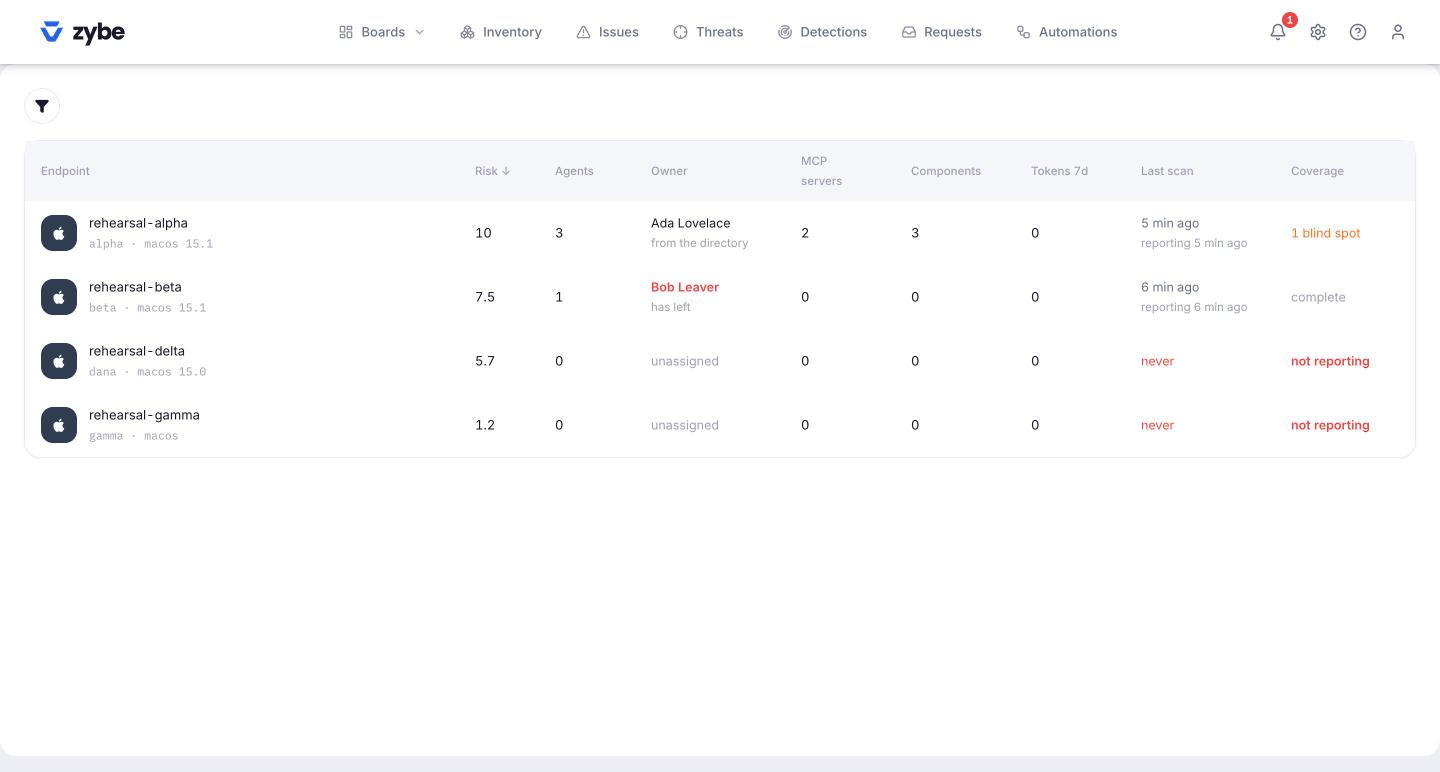
On the Endpoints page such a machine reads "hooks only" under Last scan.
What happens next
- Within a minute the machine appears on the Endpoints page.
- ZYBE has found every AI tool on it and connected itself to each one. Nothing to configure per tool.
- Each tool shows Blocking, Recording or Seen. See What ZYBE is for what they mean.
- ZYBE rescans the machine every 15 minutes and checks every action the AI tools take as it happens.
One thing to know: an AI tool that was already open when you installed won't be covered until it's restarted. The console shows it as Silent until then.
Check it worked
On the machine:
/usr/local/zybe/bin/zybe-collect --explain      # Mac
/opt/zybe/bin/zybe-collect --explain            # Linux
prints what ZYBE found and anything it couldn't read.
In the console, open the machine on Endpoints and look at the Inventory tab.
Updates
You don't update machines by hand. The workspace names the version every machine should run. Each machine downloads it, checks it's genuine, and switches over. If you want to hold machines at a version, you can, under Settings, Rules.
Uninstall
Mac:
sudo /usr/local/zybe/bin/uninstall-macos.sh
Linux:
sudo /opt/zybe/bin/uninstall-linux.sh
Add --user for a just-me install. The uninstaller disconnects ZYBE from every AI tool, puts their settings back as they were, and deletes its files. The console keeps the machine's history.
For IT: where the files go
| Mac | Linux | Windows | |
|---|---|---|---|
| Program | /usr/local/zybe |
/opt/zybe |
%USERPROFILE%\.zybe |
| Logs | /var/log/zybe |
/var/log/zybe |
%USERPROFILE%\.zybe\log |
| Runs as | LaunchDaemon ai.zybe.sensor |
systemd timer zybe-sensor.timer |
Scheduled task "Zybe Sensor" |
| Just-me install | ~/.zybe, LaunchAgent |
~/.zybe, user systemd timer |
Same as above |
The installer is downloaded to a file and then run, never piped straight into a shell, so you can read it first.
For IT: the install tokens
Every Get command issues a token, labelled by what you chose: whole machine, this user, or management push. The Deployment page lists each live token with how many laptops enrolled through it and when it was last used. Revoke stops a token; laptops already enrolled aren't affected. A token has no expiry on its own, so revoke the ones you handed out for a pilot.
Cover the conversation
Nothing extra to install. The gateway ships inside the sensor. Turn it on under the gear icon, Deployment: the switch on an endpoint group's row covers that group, and Cover the conversation on every endpoint covers them all. Within a minute each laptop starts the gateway on 127.0.0.1 and points Claude Code, Codex CLI and Gemini CLI at it. The developer sees nothing new. The Endpoints page shows conversation covered on each laptop where it's running.
For IT: the gateway listens on ports 7917 and 7918 on the loopback address only, the second one over HTTPS with a certificate it makes for itself on the laptop, because Codex insists on HTTPS. Codex trusts that certificate through a variable ZYBE sets in the system shell files. The vendor traffic still leaves the laptop from the laptop, so no firewall or proxy change is needed. Claude Code and Gemini CLI are covered when signed in with an API key, Codex with either a ChatGPT account or an API key.