Docs
Send findings to Splunk, Sentinel, Jira or PagerDuty
Connect the system once under Integrations, then an automation decides which findings go there. Nothing streams on its own.
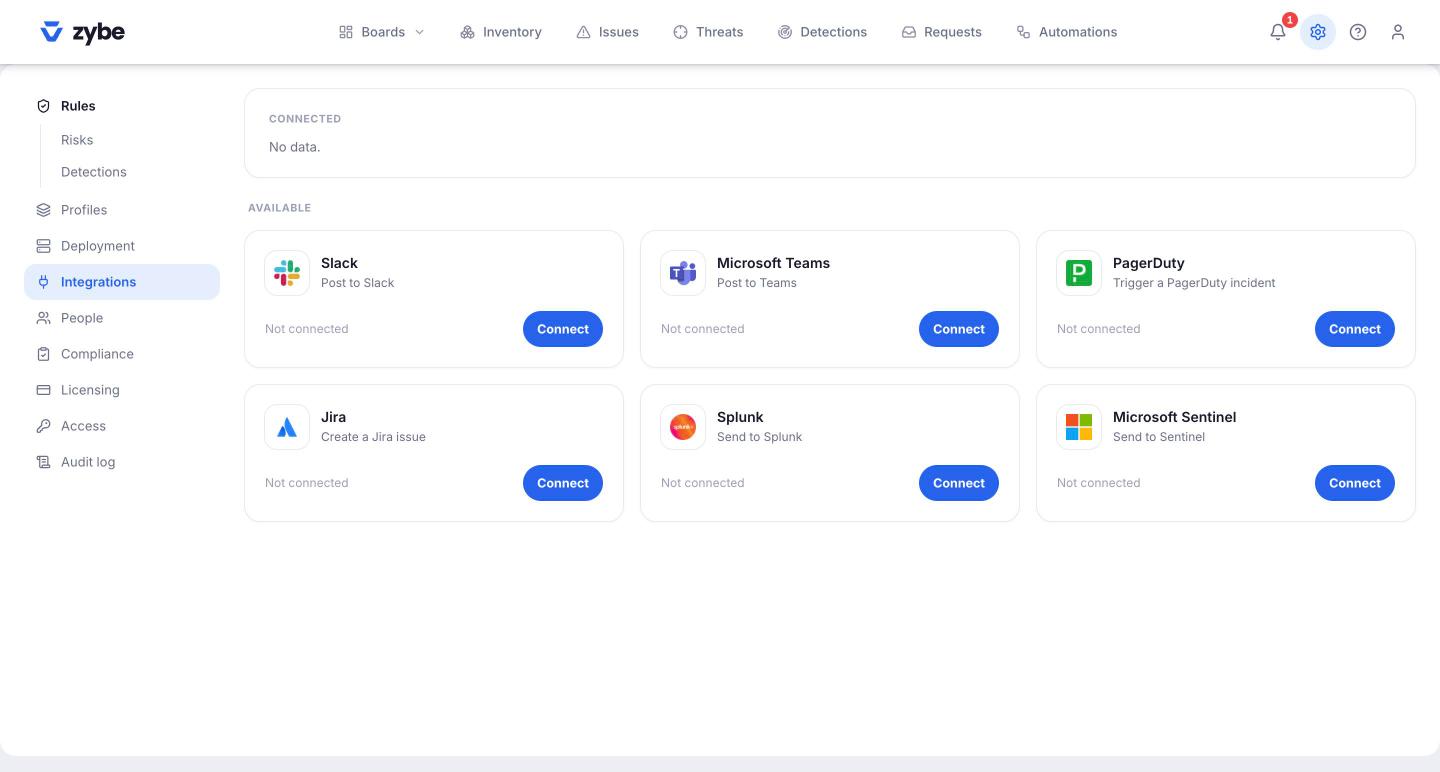
How it works
An integration is a connection. An automation decides what's sent through it: one message per finding the automation matches. So "every critical threat to Splunk" is an automation with a threat trigger, a severity condition and a Splunk step. Nothing is sent that an automation didn't send.
Connect
- Click the gear icon, then Integrations.
- Under Available, click Connect on the system.
- Fill in the form. It's saved only after a test message reaches the system, so a saved connection is a working one. Test on the connected row sends it again any time.
| System | What it asks for | What arrives |
|---|---|---|
| Slack | An incoming webhook URL for the channel | A message: severity, subject, body |
| Microsoft Teams | An incoming webhook URL | Same |
| PagerDuty | An Events API v2 integration key | An incident. Critical maps to critical, High to error, Medium to warning. Repeats of the same finding on the same laptop update the same incident. |
| Jira | Site URL, your email, an API token, the project key, the issue type | An issue with the subject as summary, the body as description, labelled zybe and the severity. An automation can override the project key. |
| Splunk | The HEC URL, the HEC token, an index | One event per finding with title, detail, severity, kind, endpoint, owner, a link, and the time. Sourcetype zybe:finding. |
| Microsoft Sentinel | The data collection endpoint, the data collection rule id, the stream name, your Entra tenant id, an app id and secret | One row per finding in your custom table, same fields. |
Connections are made from ZYBE's servers over HTTPS. Private and internal addresses are refused.
Send something
- Click Automations, New automation.
- Starts on: A threat. Add a Condition: severity is critical.
- From the rail under Integrations, click the system. Set the subject and body, or keep the defaults.
- Active, Save.
See Build an automation for the rest.
The weekly note
Each owner can get a weekly email with the open issues and the week's detections on their laptops, and a link to their own view of the console. It's in the library under Keep the team in the loop as Weekly note to each owner. Add it and switch it on. People with nothing open get nothing. Switch the automation off to stop it.