Docs
Add your team, roles and single sign-on
Give colleagues access to the console, choose what each may do, connect Entra ID, Okta or Google so people sign in with their work account, and let your directory add and remove them.
Add someone
- Click the gear icon, then Access.
- In Add someone, type their work email and pick a role. You can't grant a role above your own.
- Click Add. They sign in with that email: a one-time code by mail, or single sign-on if you've set it up.
Change what someone may do
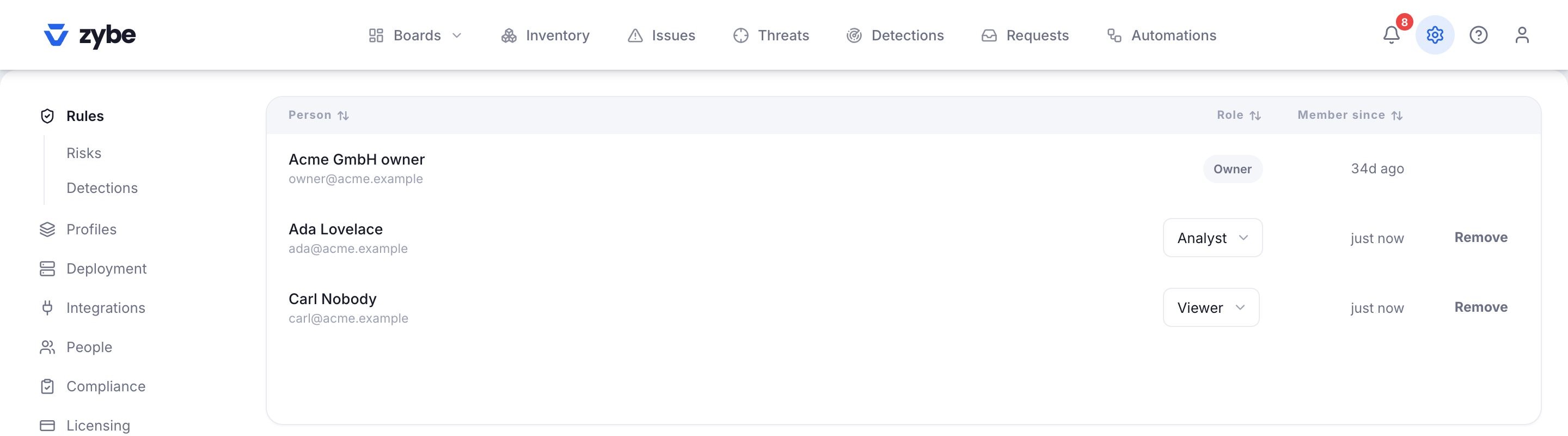
- Click the gear icon, then Access.
- In the people list, pick the new role from the dropdown in the Role column.
The change is immediate. You can move anyone at or below your own role, and give any role up to your own.
Remove someone
- Click the gear icon, then Access.
- On their row, click Remove, then Remove again to confirm.
They lose access right away, and any console they still have open goes back to the sign-in page. You can add them again later. A workspace always keeps at least one owner, and you can't remove yourself; ask another admin.
The roles
| Role | What they can do |
|---|---|
| Member | See their own laptops only, read only. Developers get this through the weekly note's link, so they can see what's on their machine without seeing anyone else's. |
| Viewer | Read everything: inventory, findings, boards, rules. Change nothing. |
| Analyst | Everything a viewer can, plus work findings: mark dealt with, ignore, send to the owner, attest compliance controls. |
| Admin | Everything an analyst can, plus block and approve things, change rules, profiles and groups, decide requests, connect integrations, run automations, manage billing, add people. |
| Owner | Everything, plus single sign-on, directory provisioning and the workspace name. |
Single sign-on
With single sign-on on, people use their company account and you decide who gets in by domain.
- Click the gear icon, then Access. The Single sign-on card is for owners.
- Pick your provider: Entra ID, Okta, Google Workspace or Other OpenID.
- Fill in what it asks for. Entra wants your directory (tenant) id. Okta wants your Okta domain. All of them want the Email domain people sign in with, a Client id and a Client secret from an app you register with the provider, and optionally an Admin group.
- In your provider, register the app with this redirect URL, shown on the card: your API address followed by
/v1/auth/sso/callback. - Choose New people become: viewer, analyst or admin. This is the role for someone from your domain who isn't on your people list and isn't in the admin group.
- Tick Require it for this domain when you want passwords and emailed codes switched off for everyone on that domain.
- Click Save.
When someone signs in:
- If they're in the admin group, they're an admin.
- Otherwise, if they're on your people list, they're a member and see their own laptops.
- Otherwise they get the role you chose in step 5.
Signing in never takes a role away. On the sign-in page, once they type their email, the button reads Continue with single sign-on.
Let your directory add and remove people
Provisioning, called SCIM, lets Entra, Okta or any directory create people in ZYBE and mark them as left.
- In the Single sign-on card, under Provisioning (SCIM), click Issue a token.
- Copy the Tenant URL and the Secret token into your provider's provisioning settings. The token is shown once.
- From then on, a person your directory deactivates is marked as having left in ZYBE, their console sessions end at once, and the laptops they own raise Endpoint belongs to somebody who has left.
Issuing a new token invalidates the old one. Revoke stops provisioning.