Docs
Different rules for different AI tools
Strict with Claude Code and Cursor, hands-off with Gemini CLI, or a special set for Claude Desktop. A profile can be for named AI tools only.
When you'd want this
- Your developers use Claude Code and Cursor for real work, and you want those two under Block. A tool somebody's just trying out can stay on Report.
- One tool needs a rule the others don't. Claude Desktop shouldn't read project files at all, say.
- You're rolling out blocking one tool at a time.
Steps
- Click the gear icon, then Profiles.
- On Detection profiles, click New profile.
- Name it, like "Claude Code and Cursor: strict". Click Next.
- Tick the rules. Click Next.
- Under Agents, tick Claude Code and Cursor. Each tool has its own icon so you can find it fast.
- Under Endpoints, tick the groups it's for. Tick All endpoints for everywhere.
- Click Create profile.
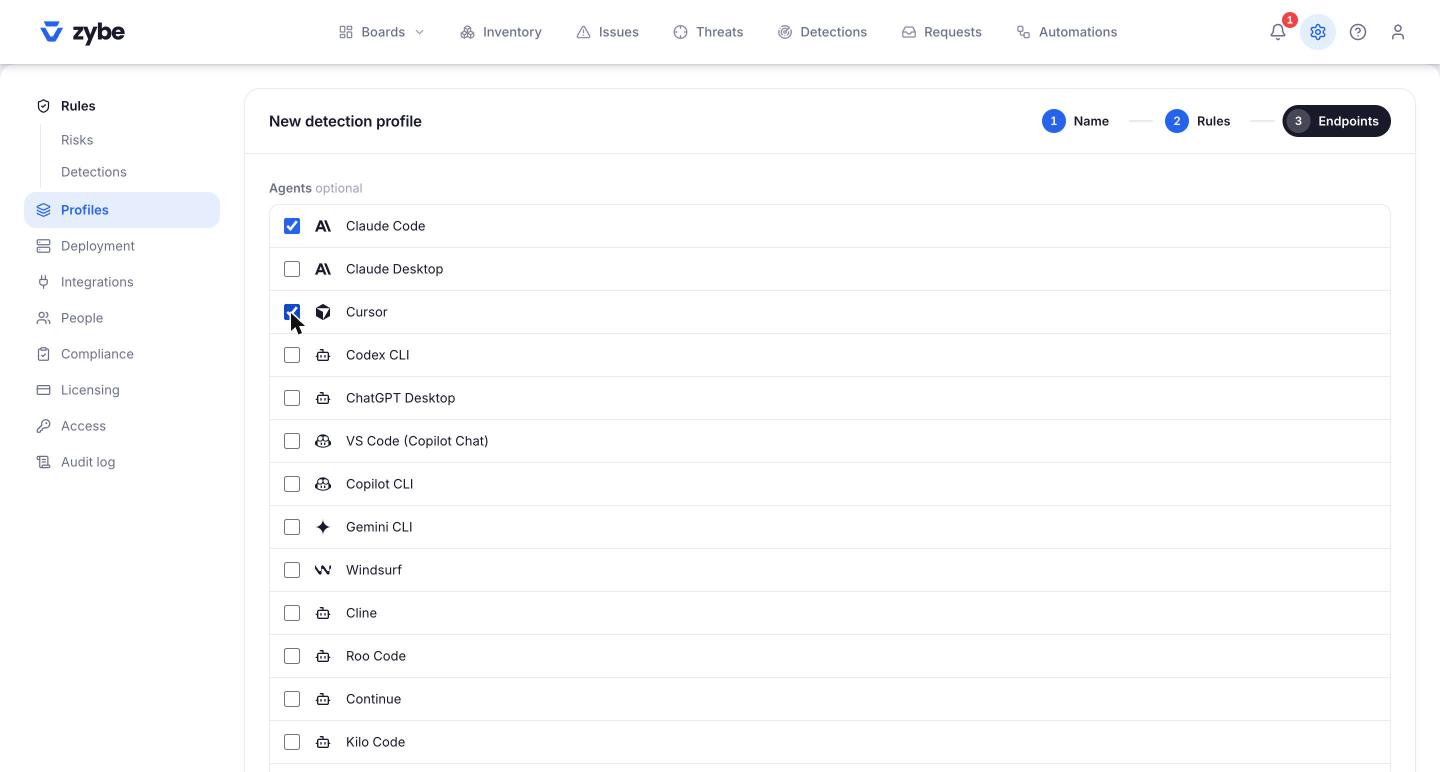
The profile row now reads "Claude Code, Cursor only". On the laptops in those groups, Claude Code and Cursor run this profile's rules. Every other AI tool on the same laptops falls to the next profile down, then Default.
Add or remove a tool later
Expand the profile on the Profiles page. Under Agents, tick or untick. It saves immediately.
One laptop, two sets of rules
That's exactly what this does. A developer with Claude Code and Gemini CLI on the same machine can have Claude Code under Block and Gemini CLI under Report. The developer can't see any of it as separate settings; it's one policy on the laptop, and ZYBE applies each rule only to the tool it's for.