Docs
Build an automation
When this happens, if these things are true, do that. Email someone, post to Slack, open a Jira ticket, or block a package on every laptop, without anyone clicking.
Start from the library
- Click Automations, then Automation library.
- Pick a category. Guardrails block or approve packages and components by themselves. Tell the right person emails the owner or the admins. Send it to your tools posts to a webhook. Keep the team in the loop is the weekly note.
- Open one. It says why it's recommended, what it looks like, and how many things it would act on today. Click Use this automation. It arrives as a draft.
- Give it a look, switch it from Draft to Active, click Save.
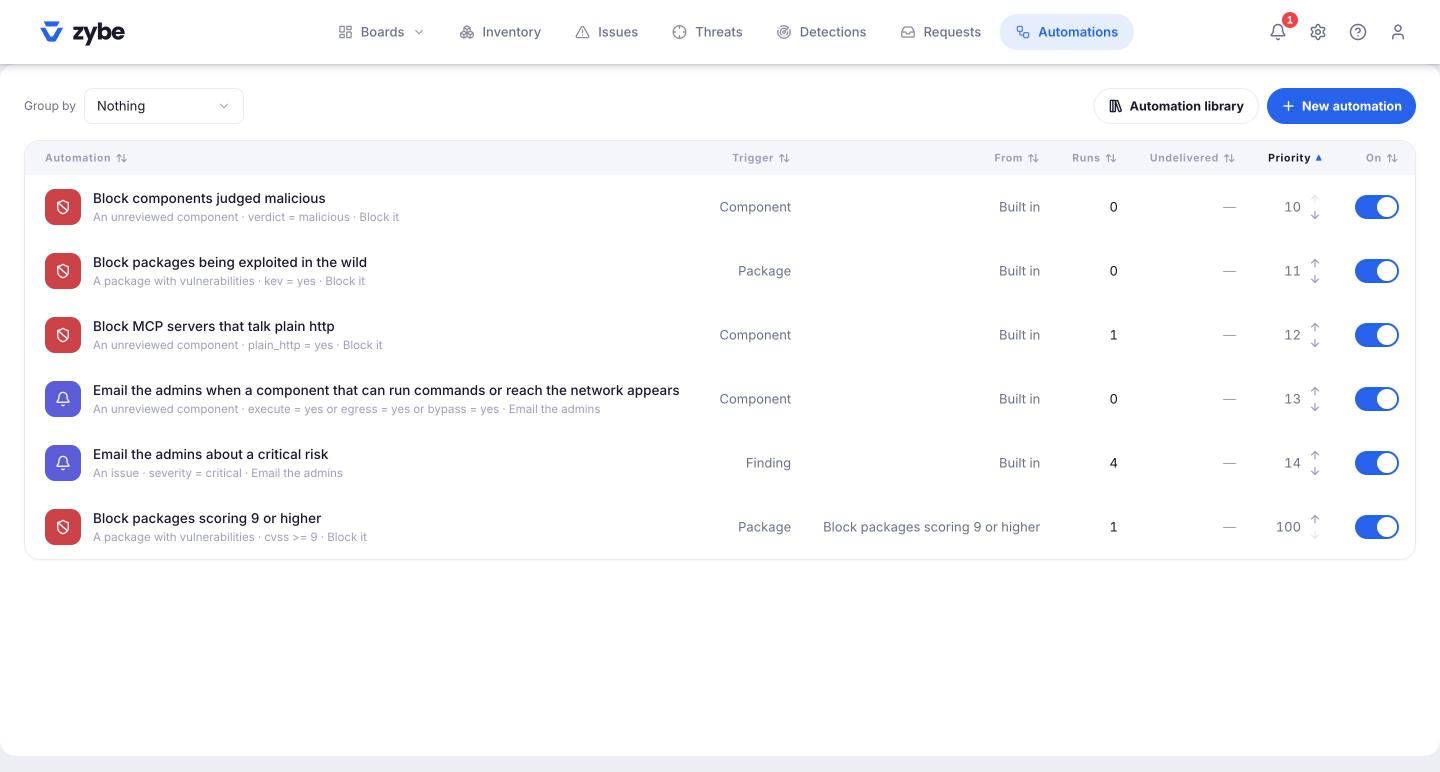
Five are built in and already on: block components judged malicious, block packages being exploited in the wild, block MCP servers that talk plain HTTP, email the admins when a component that can run commands or reach the network appears, email the admins about a critical risk. They can't be deleted, only switched off.
Describe your own turns a sentence like "email security when an agent reads a credential file on a Finance laptop" into a draft.
Build one from scratch
- Click New automation. Name it and say what it's for.
- Starts on: pick the trigger.
| Trigger | When it runs |
|---|---|
| An issue, A detection, A threat, Any finding | Each time one is raised. Narrow it by endpoint group and by rule. |
| A package | Once per package with advisories, across every laptop that holds it. Conditions can read severity, CVSS, EPSS, exploited, fix available. |
| A component | Once per unreviewed MCP server, skill, subagent, plugin or extension. Conditions can read what it can do: run commands, reach the network, skip prompts, plain HTTP. |
| A schedule | Every day or week, per owner, with their open issues. |
| Manual | Never by itself. It waits in the Actions menu of a finding for a person to pick it. |
- Click Condition to add "only when": severity, kind, endpoint, agent, owner, department, title, rule, and for packages and components the fields above. A live line says how many things match right now.
- Add what it does, from the rail:
- Block it or Approve it: only after a package or component trigger. Packages by name, components by content, on every laptop. Give a reason; it's shown with the thing.
- Email: to the laptop's owner, the admins, or an address. Subject and body can use
{{title}},{{detail}},{{severity}},{{endpoint}},{{agent}},{{owner}},{{rule}}, and{{digest}}on a schedule. - Webhook: a URL, with a ready-made shape for Slack, Teams, PagerDuty or plain JSON, and headers for a token.
- Integrations: each system you've connected under Settings. Jira takes a project key.
- Preview says how many open findings it would match now, and how many have no owner to write to.
- Switch to Active and Save.
Guardrails
An automation with a Block it or Approve it step is a guardrail: a rule that decides what's allowed to exist and run. They show red for block and green for approve in the list. A package or component a person has already decided about is left alone.
Manual ones
An automation that Starts on: Manual is a button in the Actions menu of every finding, under Run automation. Its condition still holds, so it can decline a finding it doesn't fit and say why. Good for "escalate this": a Jira ticket plus a PagerDuty incident, in one click.
The list
Group by status, trigger or source. Runs and Undelivered per automation. Priority arrows decide the order when several match. On switches each.