Docs
Find out what an AI agent did
Every command, file read, file write, web fetch and MCP call, by agent, by laptop, by session, with the outcome. Here's where to look.
Everything that matched a rule
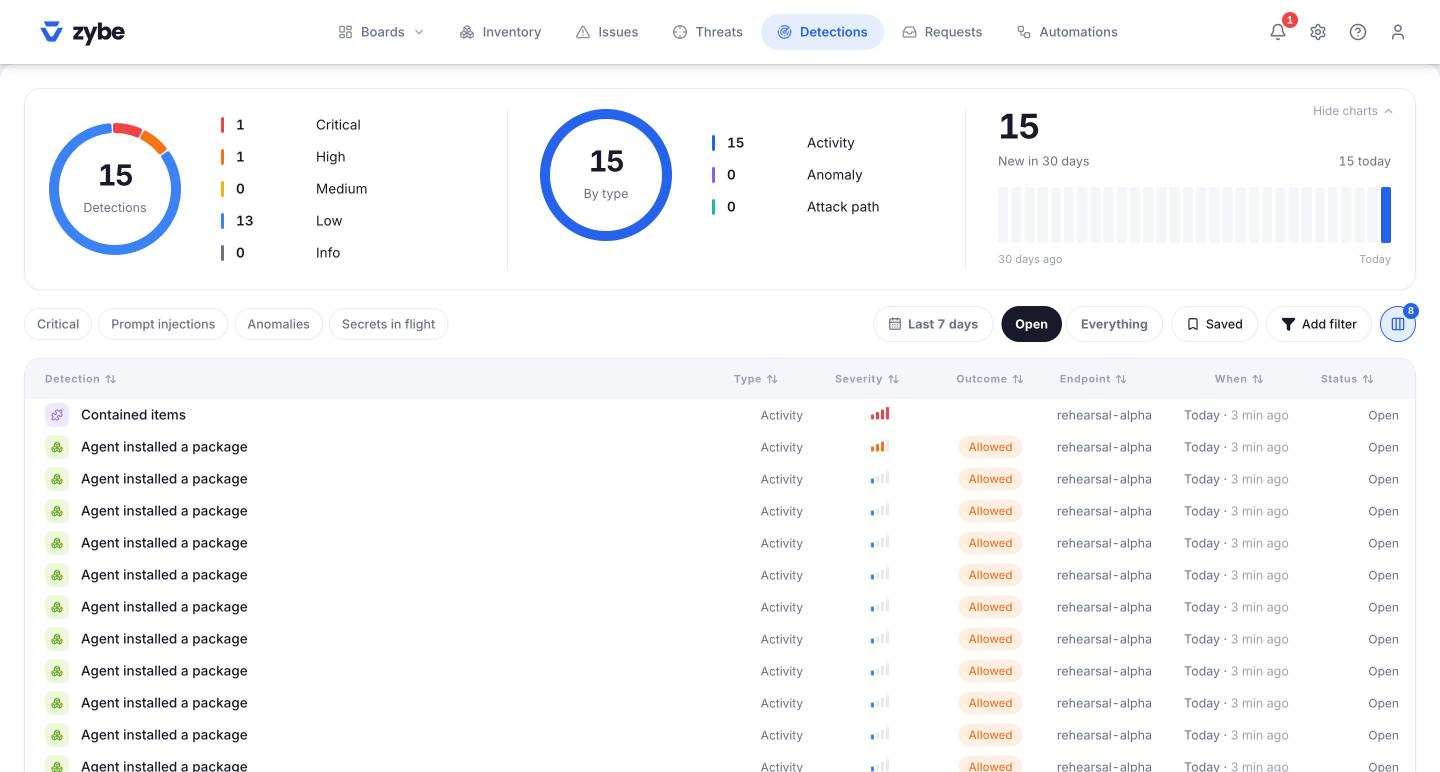
- Click Detections in the top bar.
- Each row is one action that matched a rule, with its outcome: Blocked (stopped before it ran), Asked (the developer had to decide), Allowed (it ran, and was recorded).
- Use the chips to narrow it: Critical, Prompt injections, Anomalies, Secrets in flight.
- Change the time range at the top. It starts at the last 7 days.
- Click a row. The panel shows the agent, the owner, the endpoint, the session, the rule, an AI-written summary of what happened, the evidence, and what to do.
Everything, matched or not
Every action is recorded, not just the ones that matched a rule.
- Click Inventory, then Endpoints in the left rail, then the laptop.
- Click Activity at the top. Every action from every AI tool on this machine, in order, with its kind and the decision.
By session
A session is one conversation with an AI tool, from open to close. Clicking a session id anywhere in the console lists everything that happened in that one conversation. That's how you follow "it read the file, then it ran the command".
Things that look like an attack
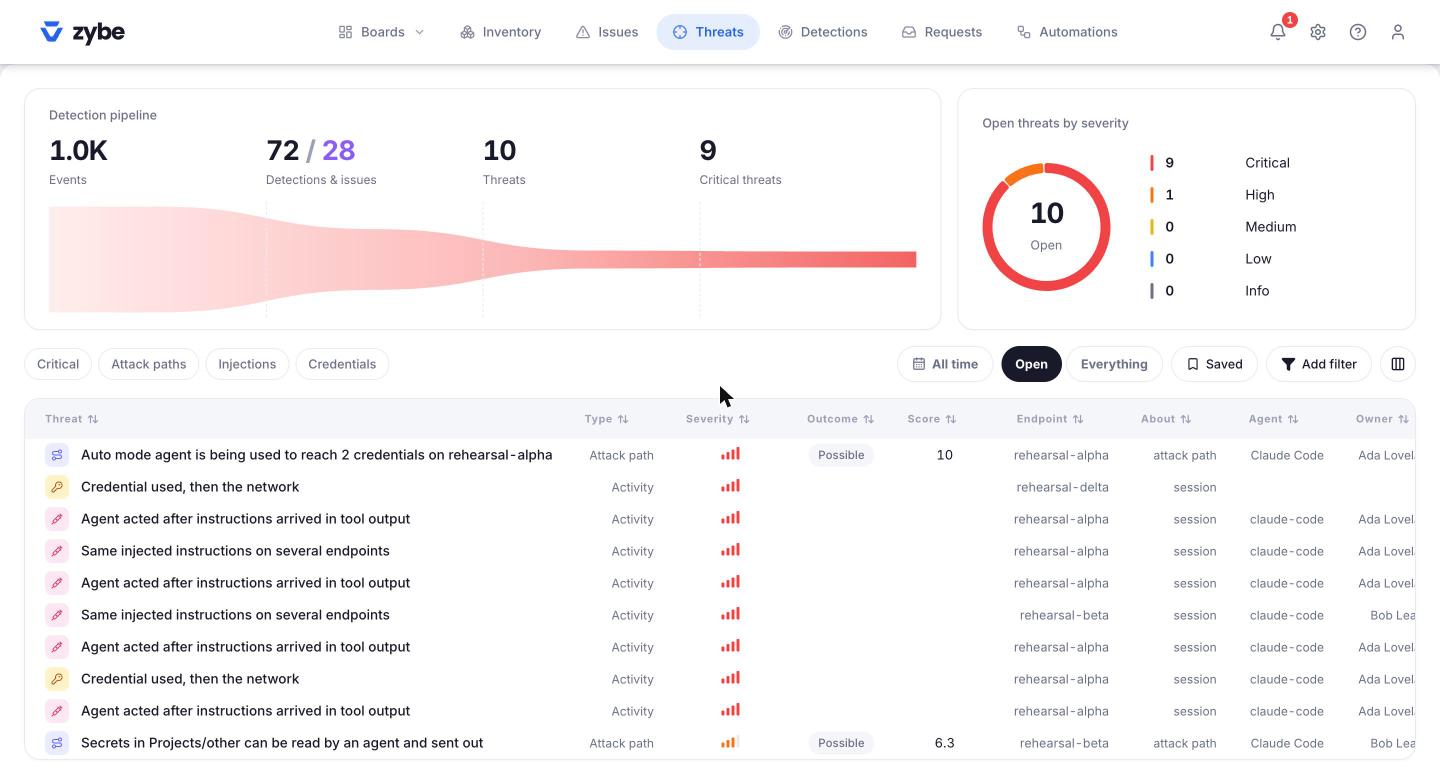
Threats is Detections with the noise removed. ZYBE joins related actions into one story and keeps only the ones that landed on something risky. Open a threat to see the chain, the AI summary and the recommended fix. See Protect against prompt injection for the most important kind.
Close it
In any finding's panel, click Actions, then Mark as dealt with. If the same thing happens again it comes back as new. Ignore this asks for a reason and keeps it closed. Everything you do here is in the Audit log under Settings.