Docs
Block one MCP server, skill or package everywhere
Somebody installed something you don't want. Block it once, and every laptop refuses it from the next policy refresh.
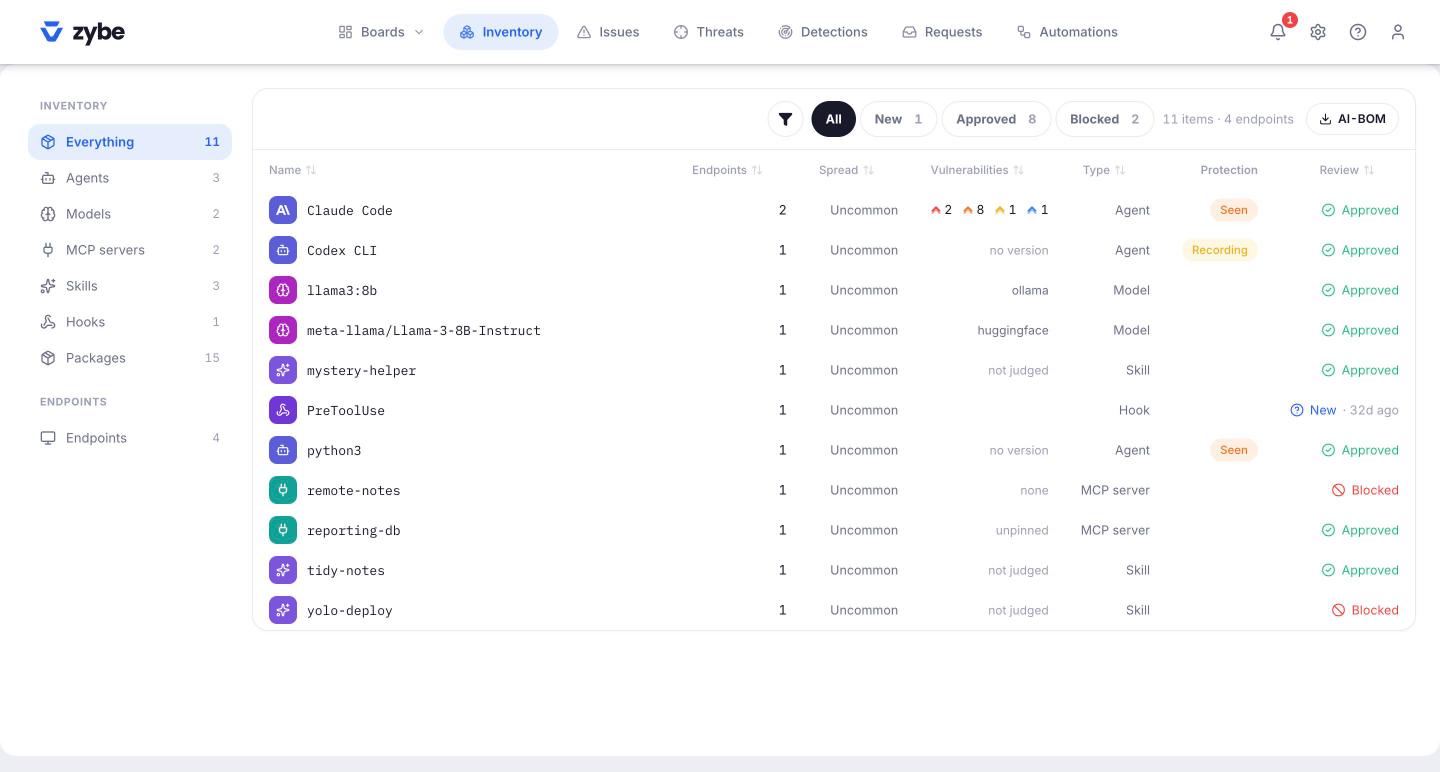
Steps
- Click Inventory in the top bar.
- Find the thing. Use the left rail to narrow to MCP servers, Skills or Packages, or type its name in the filter.
- Click it. The panel shows where it is and who has it.
- Click Actions, then Block.
That's it. ZYBE calls this containing. Within a few minutes every laptop has the new policy. On any AI tool that shows Blocking, a call to that MCP server, a load of that skill or an install of that package is refused, with the reason shown to the developer.
What "blocked" means for each kind
| Kind | What's refused |
|---|---|
| MCP server | Every call to it, by content hash, so a renamed copy is still refused |
| Skill, subagent or plugin | Loading it |
| Package | Installing it. Already installed copies raise the issue Contained package still present until they're removed. Under Rules, Advanced you can extend this to npm install and pip install typed by a person; see Block contained packages in the terminal. |
| Package below a version | Installing any version below the one you name. Use it when a fix has been published. |
Unblock
Open the item in the Inventory, click Actions, then Approve. Or wait for a developer's request: a refused install carries a link that lets them ask with a reason, and the request lands on Requests.
Block it before anyone installs it
Rules, Unreviewed lets you hold every new MCP server or skill for review, so nothing runs until you've seen it. See Review new MCP servers and skills.
Automatic blocking
Under Automations, the built-in Guardrails block things judged malicious by ZYBE's feeds, packages being exploited in the wild, and MCP servers that talk over plain HTTP, without you lifting a finger. See Get told when something happens for how automations work.