Docs
Your first 15 minutes
Install ZYBE on your own laptop, see your AI tools appear in the console, and stop one action on purpose. No company rollout yet, just you.
What you need
- A ZYBE workspace. Sign up at console.zybe.ai with your work email. You get a code by email, type it in, and you're in.
- A laptop you can install software on. Mac, Linux or Windows.
- At least one AI tool on it. If you have none, install Claude Code or Cursor first, or skip to step 3 to see the console with sample data.
Step 1: install the sensor
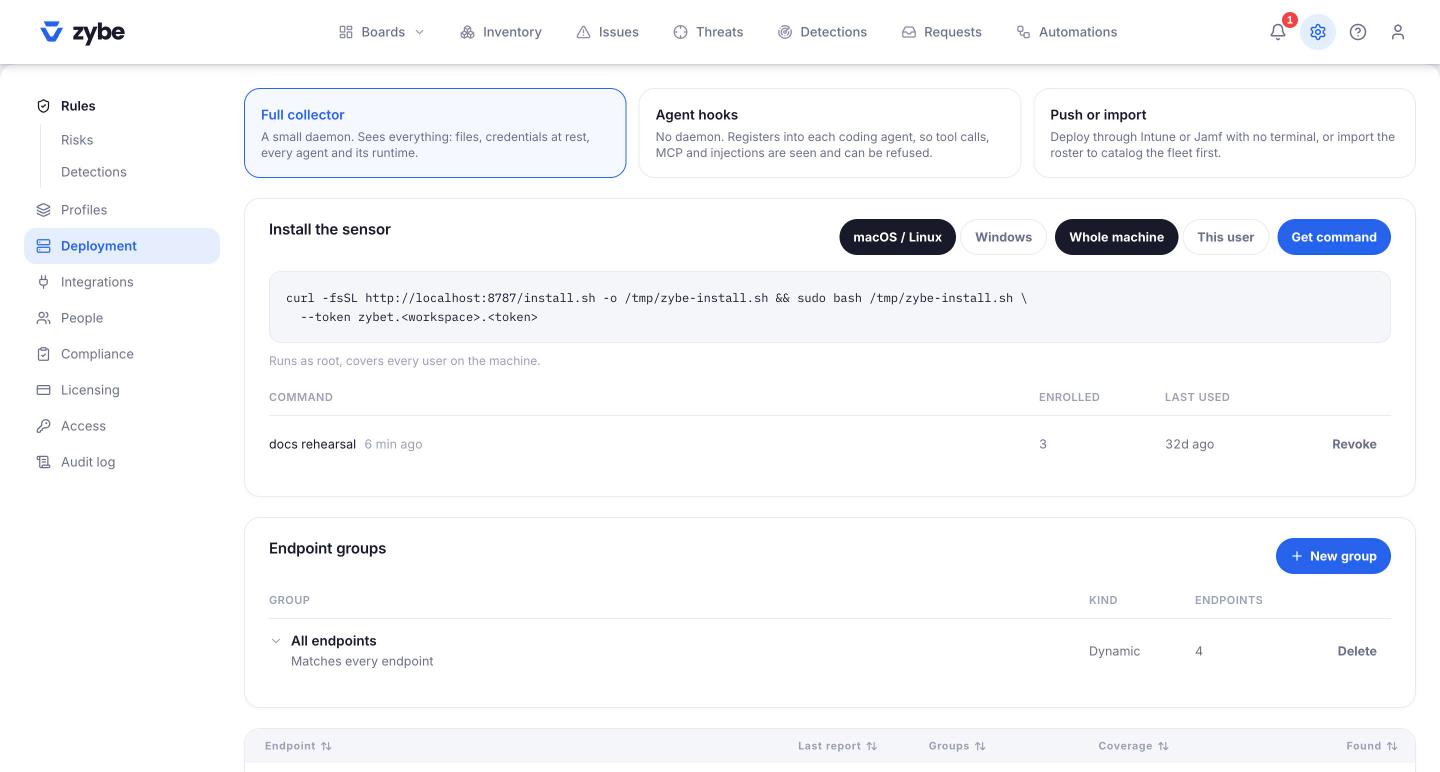
- In the console, click the gear icon at the top right, then Deployment in the left rail.
- On the Install the sensor card, pick macOS / Linux or Windows, and Whole machine or This user. For your own laptop, either is fine.
- Click Get command. The command appears with your workspace's token already in it. Click Copy.
- Paste it into a terminal and run it. On Mac and Linux a whole-machine install asks for your password. On Windows, use PowerShell.
That's the whole install. Nothing to set up per AI tool. The sensor finds them itself.
Step 2: see your laptop appear
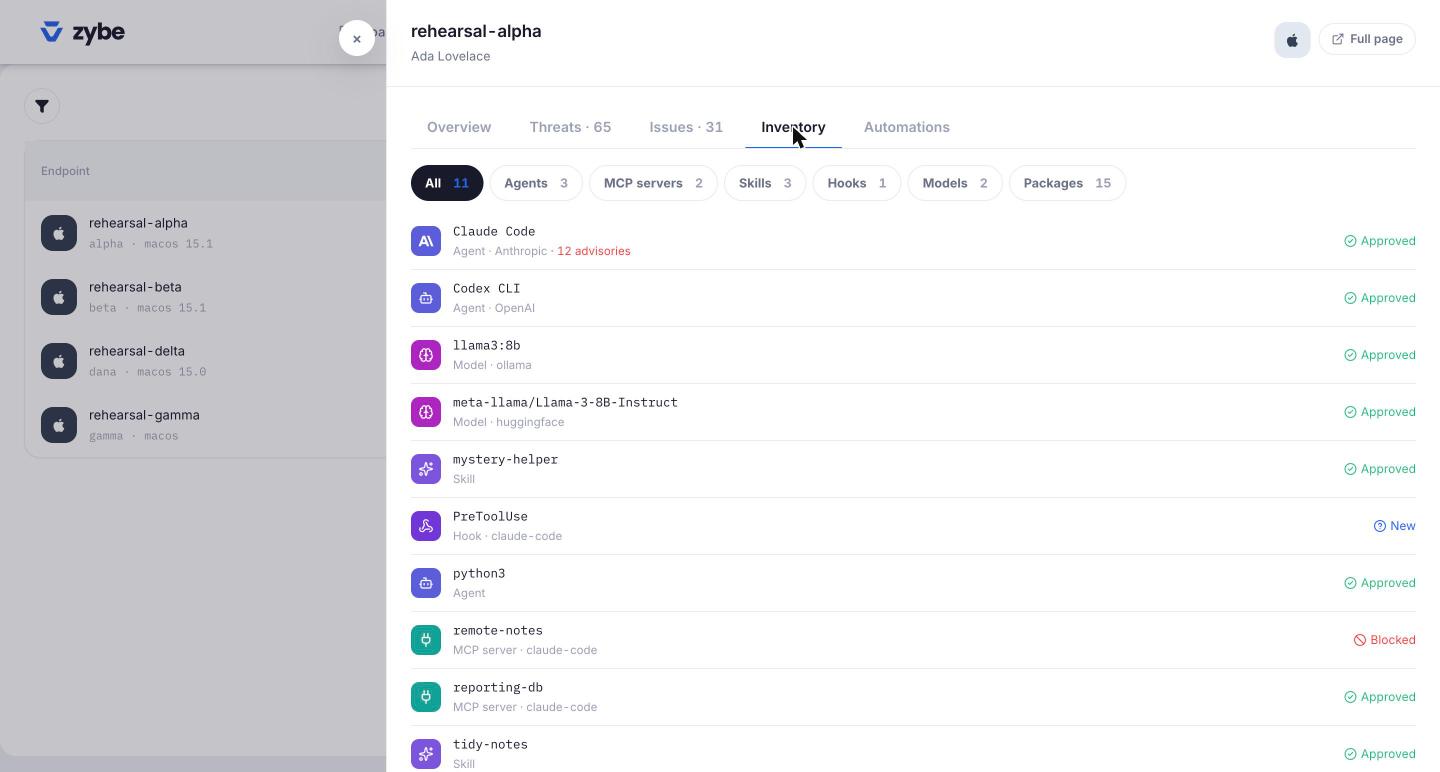
Go to Inventory, then Endpoints in its left rail. Your machine is there within a minute. Open it and click Sensor at the top: every AI tool ZYBE found is listed with one word next to it: Blocking, Recording, Seen or Silent. The page What ZYBE is explains the words.
Click Inventory at the top of the endpoint page. It lists everything the AI tools on this machine can use: MCP servers, skills, packages, hooks. Everything is marked New until you look at it and approve or block it.
Step 3: see what's already risky
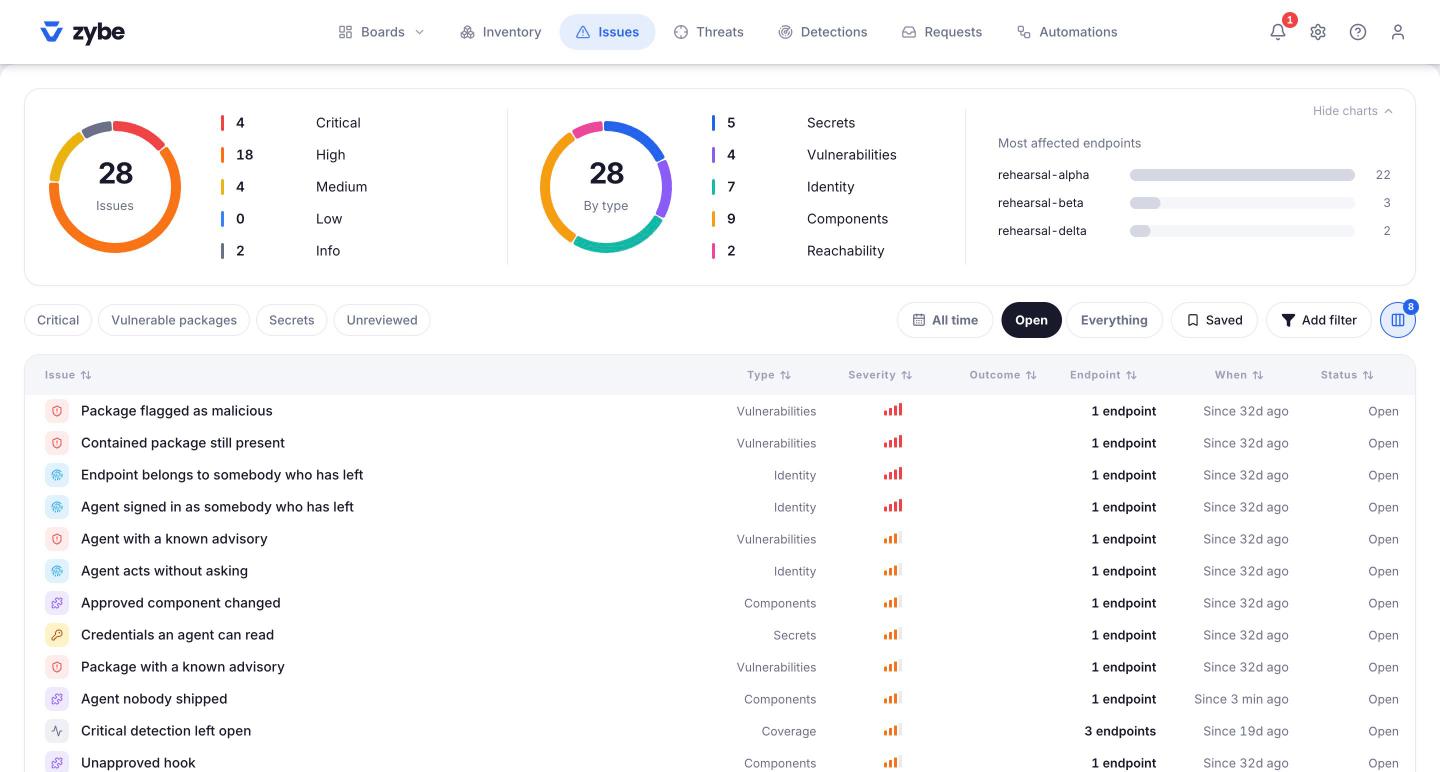
Go to Issues. These are things that are true right now about your laptop that you'd want to fix. The most common first one is Credentials an agent can read: a key or password sitting in a file any AI tool on the machine can open. Each issue says what to do about it.
Step 4: stop something on purpose
- Click the gear icon, then Rules, then Detections in the left rail.
- Click Agent read a credential file. A panel opens. Click Edit, set When it matches to Block, and click Save.
- Open an AI tool on your laptop that shows Blocking, say Claude Code, and ask it to read
~/.aws/credentialsor a.envfile.
The tool stops. It shows you ZYBE's reason, and it doesn't try another way. In the console, Detections shows the attempt with the outcome Blocked.
Set the rule back to Ask if you'd rather be asked than stopped. Then the tool pauses and lets you decide each time.
What just happened
ZYBE doesn't sit in the middle of the AI tool's internet traffic. The tool itself asks ZYBE "may I do this?" right before each action, on the laptop, and does what ZYBE answers. That's why it works offline and why it doesn't slow anything down.