Docs
Work a finding
Open it, read it, decide. What each button in the Actions menu does, how to filter, and how to save the views you come back to.
Open it
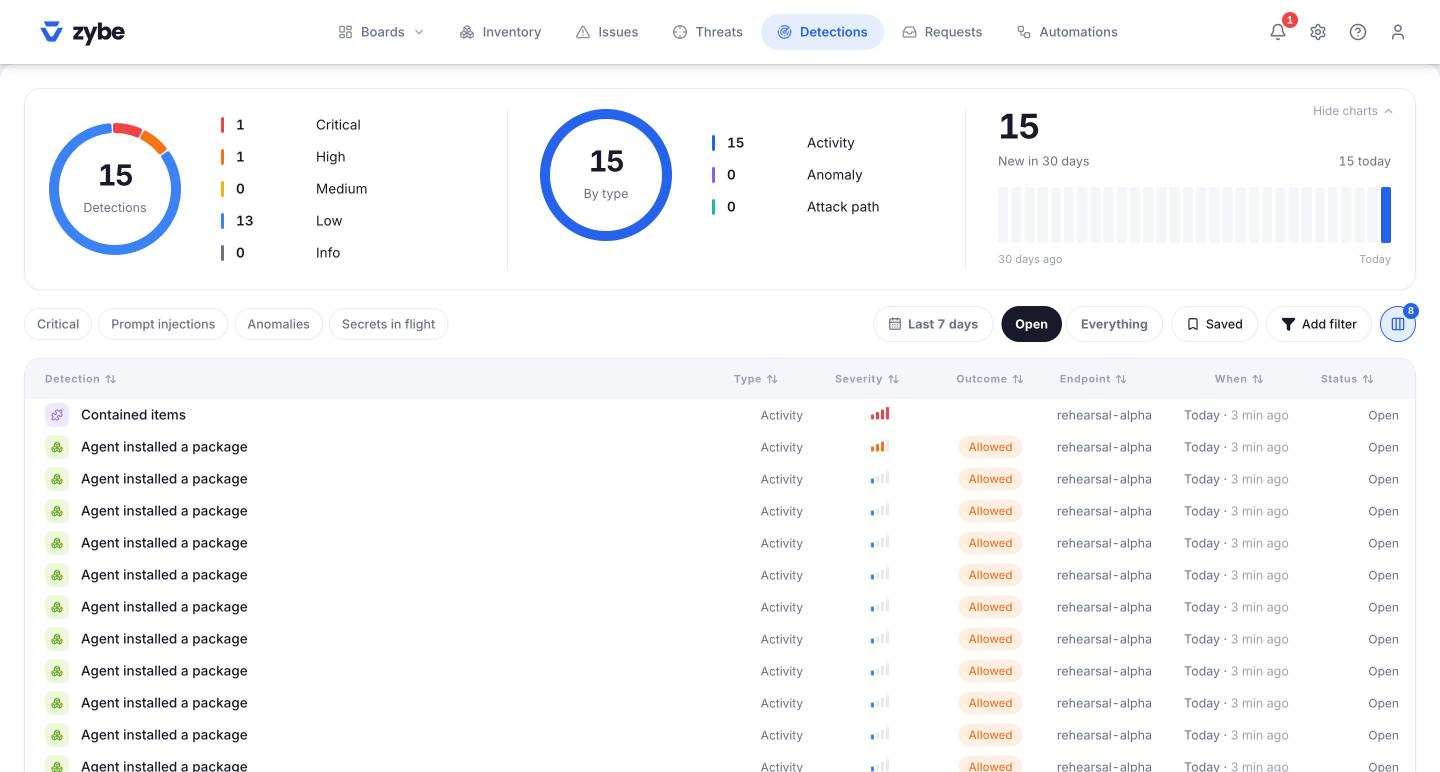
Click a row on Issues, Threats or Detections. The panel shows, top to bottom: the facts (agent, owner, user, endpoint, project, repository, session), the AI summary in plain words, the Evidence or what's Affected, the Remediation, and for a threat, the Path drawn as a graph. Every endpoint or item named is a link.
Decide
Click Actions. What's offered depends on the finding. The ones that change something are first, in red.
| Action | What it does | Who |
|---|---|---|
| Send to the owner | Emails the laptop's owner what was found and the command that fixes it. Only on issues, when the laptop has an owner. | Analyst |
| Stop this agent | Every further action from that AI session is refused within ten seconds. The program keeps running; it just can't do anything. | Admin |
| Block the thing | Contains the MCP server or component on every laptop, by content, so renaming it doesn't help. | Admin |
| Show me where it is | For a credential: opens the Inventory at the key, with where it sits. Changes nothing. | Analyst |
| Prevent this on every endpoint | Sets the rule behind this threat to Block, so next time the action is refused instead of reported. | Admin |
| Accept until a date | For an issue you've understood and will live with for now. Needs a reason and a date; it comes back then. | Admin |
| Ignore this | Stays quiet unless something about it changes. Needs a reason, for whoever reads it next. | Analyst |
| Mark as dealt with | Closes it. If the same thing happens again it comes back as new. | Analyst |
A closed finding shows Reopen. Every decision is in the audit log with the reason.
When one issue stands for the same cause on many laptops, the title says "· 12 endpoints" and Accept or Ignore applies to all of them. Mark as dealt with stays per laptop.
The More menu at the top has Edit rule, which opens the rule that raised it.
Run an automation on it
If you've made an automation with the trigger Manual, it's at the top of the Actions menu under Run automation. See Build an automation.
Filter
- Chips at the top: on Issues, Critical, Vulnerable packages, Secrets, Unreviewed. On Threats, Critical, Attack paths, Injections, Credentials. On Detections, Critical, Prompt injections, Anomalies, Secrets in flight.
- Time range: Today, Last 24 hours, Last 7 days, All time, or a calendar.
- Open or Everything.
- Add filter for anything else: severity, type, status, endpoint, agent, owner, department, project, repository, rule, session, score. Operators are is, is not, contains, more than, less than.
- Columns hides or shows columns. The first can't be hidden.
Save a view
Filter the way you like, click Saved, name it, click the plus. It's in the list from then on, with Rename and Delete. Views are kept in your browser, so they're yours, not shared.
Charts
Show charts at the top of Issues and Detections. Threats always shows the pipeline: how many events became how many threats, and open threats by severity.