Docs
Different rules for different teams
Strict rules for Finance, lighter ones for Engineering, a special set for contractors. Put laptops in groups, then give each group a profile.
The idea
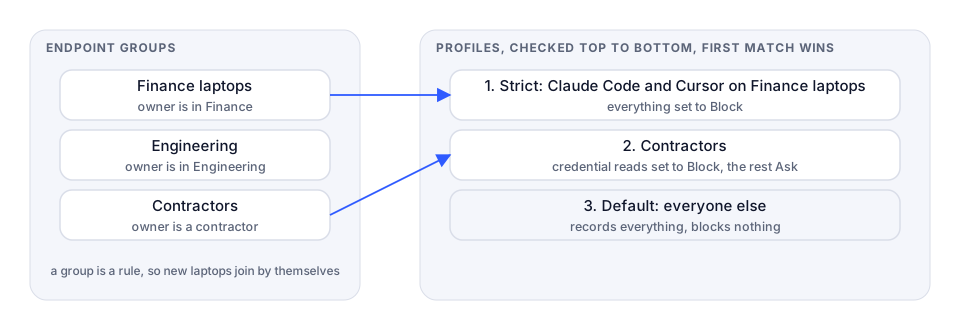
A group is a set of laptops. A profile is a set of rules for one or more groups. Profiles are checked top to bottom, and the first one that fits a laptop is the one it gets. The Default at the bottom catches everyone else.
There are two kinds of profile, and they're independent: Risk profiles decide which standing checks run (keys an agent can read, old versions, and so on). Detection profiles decide which action rules run, and how: Report, Ask or Block.
Step 1: make a group
- Click the gear icon, then Deployment.
- On the Endpoint groups card, click New group.
- Give it a Name, like "Finance laptops".
- Under Members, choose Dynamic and add a rule: Department is
Finance. Or Hostname starts withfin-. Click And to add more conditions. A laptop that enrols next month and matches is in the group by itself. - Or choose Static and tick the laptops by hand. Good for a pilot.
- Click Create group.
Department and owner come from your people list. Upload it under Settings, People, or connect your identity provider under Access.
Step 2: make a profile
- Click the gear icon, then Profiles.
- On Detection profiles, click New profile.
- Name it, like "Finance: strict". Click Next.
- Rules: tick the rules this profile runs. Add all then untick is quickest. Click Next.
- Endpoints: tick Finance laptops. Leave Agents empty for every AI tool on those laptops. Click Create profile.
- Expand the new profile in the list. Each rule's mode, Report, Ask or Block, is set here.
Do the same under Risk profiles if the standing checks should differ too.
Step 3: order them
Profiles are first match wins. Use Move up and Move down so the most specific is at the top. The Default stays at the bottom and can't be scoped; edit its rules on the Rules page.
Check who got what
Back on Profiles, the Endpoints column shows how many laptops each profile governs. On Deployment, each group shows its members.
Changing a group later
A group's rule can be edited from the Deployment page. A profile's groups can't be changed after it's created; make a new profile and delete the old one. Its laptops fall back to the next profile down, then Default. The console says so before you delete.